

Blender to Unity Kit
Overview

A pipeline toolset that bridges the gap between offline DCC (Blender) and real-time engine (Unity), automating the entire asset import process. The kit eliminates the manual labor of material reassignment, texture reconnection, file renaming, and folder organization — treating import as a fully automated pipeline rather than a manual chore.
If you work with Blender and Unity, you know the drill — export the FBX, drag it into Unity, and materials are pink or default white. Textures are disconnected, filenames are messy (Cube.001, material.004), and the next 20 minutes go to manual cleanup. Now multiply that by 50 assets.
Philosophy: Import → Organize → Rename → Done.
Architecture
Blender Export
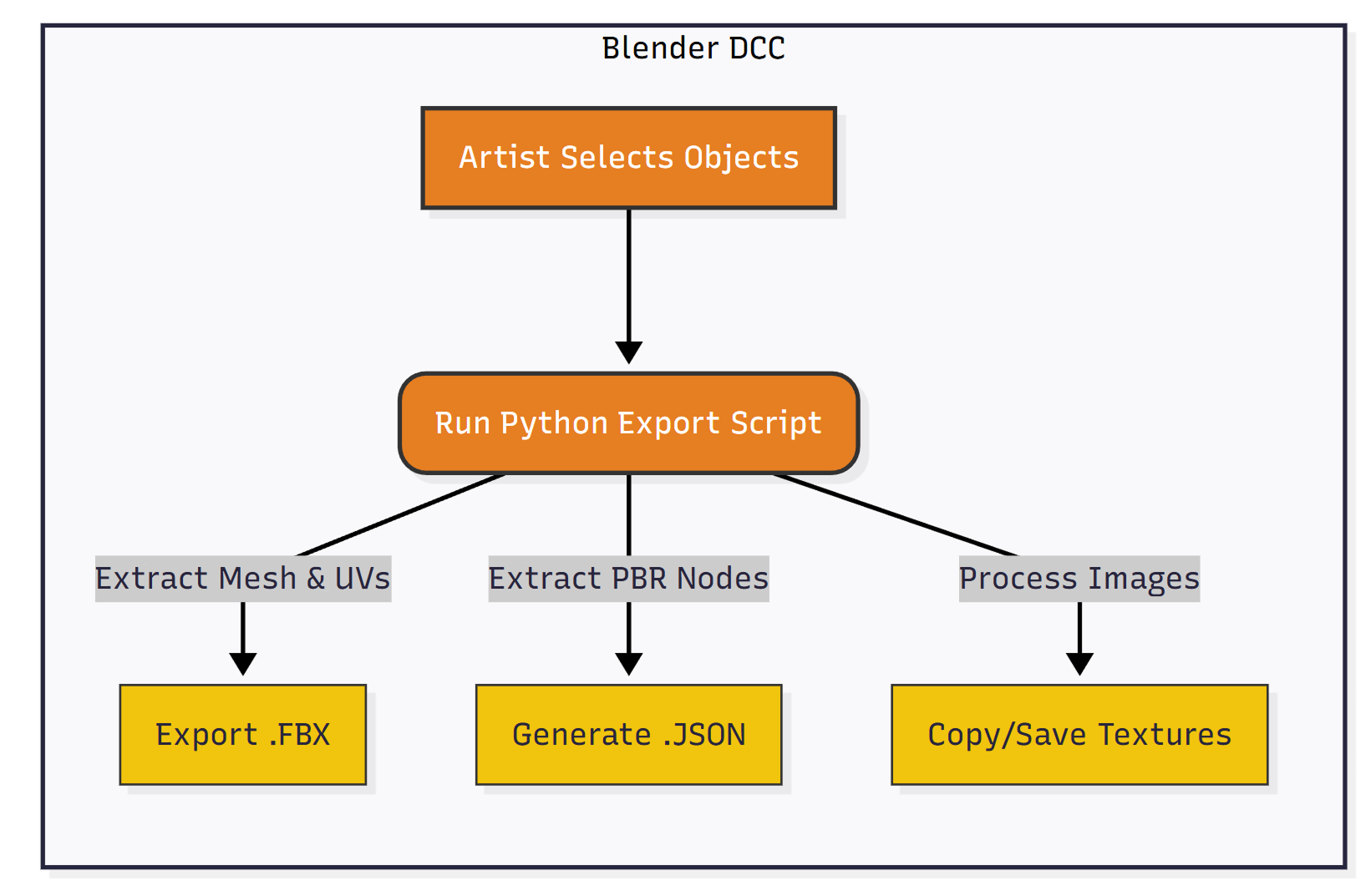
Python script exports FBX geometry and generates a JSON manifest — a "passport" carrying exact Principled BSDF values, texture paths, and UV transforms.
Unity Import
C# importer scans for FBX + JSON pairs, generates or reuses shared materials from the manifest, and force-remaps material slots on import.
Auto-Organize
Post-import pass standardizes naming conventions, structures files into a clean hierarchy, and generates game-ready prefabs.

Blender Export — Python
Standard FBX export carries geometry well but often fails to carry complex PBR data or specific UV transform settings into Unity's shader system. The solution uses a Python script in Blender that exports the FBX mesh data and generates a JSON manifest alongside it.
The JSON acts as a "passport" for the model, containing exact values from the Principled BSDF node — base color, metallic, roughness, texture paths, UV scale, and UV offset per channel.

Unity Importer — C#
Standard Unity importers often result in pink materials or duplicate assets because they lose the connection between mesh data and material data. The tool solves this using a 3-stage pipeline:
Batch & Scan
The script recursively scans the selected folder (or multiple subfolders) for the FBX and its accompanying JSON passport.
Material Generation
Checks the SharedMaterials library first. If the material exists, it reuses it; if not, it generates a new one from the JSON data — BaseColor, Roughness, Normal, and all texture channels.
The Remap
The technical crux. The tool intercepts Unity's native import process to force a permanent link between the FBX's internal material slots and the project's material assets. No more pink materials after reimport.

Auto-Prefab & Organization
A clean project is just as important as a working one. The final step handles housekeeping — instead of dumping files into a generic folder, the tool executes a Reorganize & Rename pass immediately after import.
Standardization
Textures are analyzed and auto-renamed with professional suffixes: T_Name_D (Diffuse), T_Name_N (Normal), T_Name_R (Roughness). Materials are prefixed with M_.
Structuring
Files are moved from the import staging area to a clean hierarchy under Assets/BlenderAssets/ — Materials go to a shared library, Models to their own directory.
Prefab Generation
A game-ready Prefab is generated and placed in the Prefabs folder, ready to be dragged into the scene.
