

Blender to Unity kit
Overview
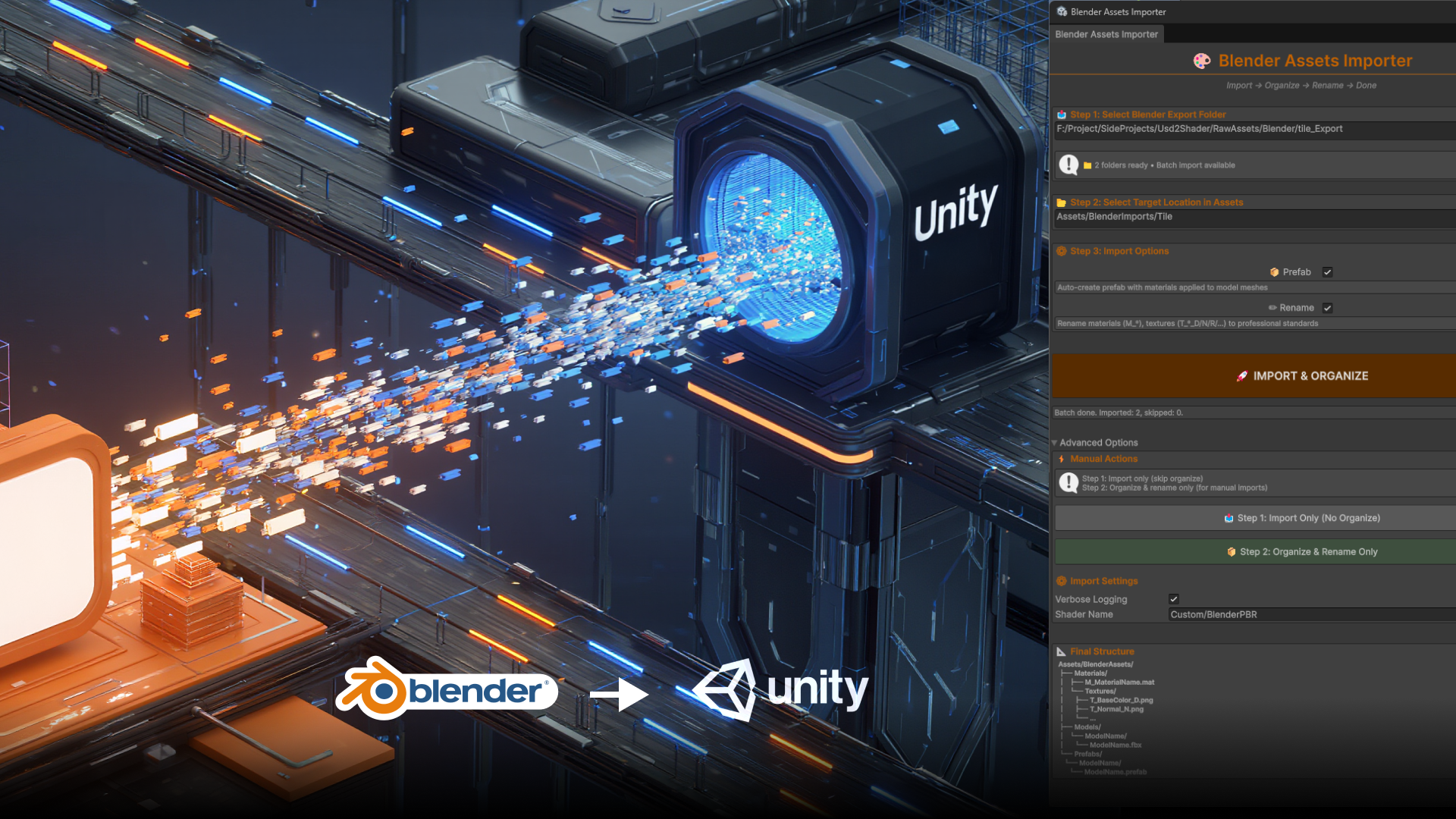

Stop the "Pink Material" Nightmare: Automating Blender-to-Unity Pipeline
If you are a Unity developer or Technical Artist working with Blender, you know the drill. We spend hours modeling a prop, export the FBX, drag it into Unity, and...
- The materials are pink (or default white).
- The textures are disconnected.
- The file names are messy (Cube.001, material.004).
- Spend the next 20 minutes manually creating Materials, dragging textures into slots, and renaming files.
Now imagine doing that for 50 assets. It’s not just boring; it kills us.
I decided to stop doing manual labor and built the Blender Assets Importer. This toolset bridges the gap between offline DCC (Blender) and Real-time (Unity), treating the import process as a fully automated pipeline rather than a manual chore.
It follows a strict philosophy: Import → Organize → Rename → Done.
Here is how we designed the architecture and the code behind it.
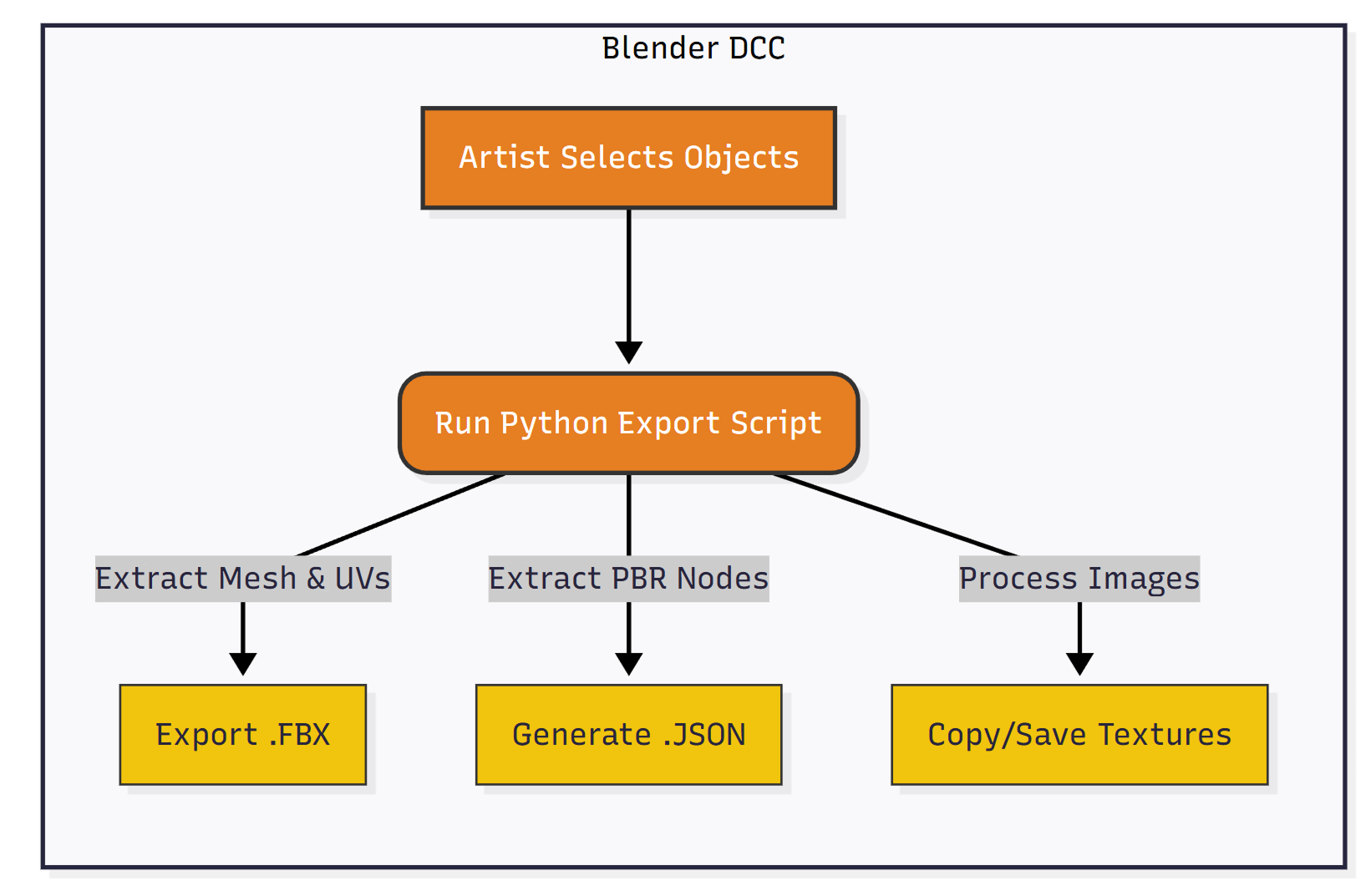

Part 1: The Blender Export (Python)
Standard FBX export carries geometry well, but it often fails to carry complex PBR data or specific UV transform settings perfectly into Unity's shader system.
Our solution uses a Python script in Blender that does two things:
- Exports the FBX (Mesh data).
- Generates a Manifest (JSON).
The JSON acts as a "passport" for the model. It contains the exact values from the Principled BSDF node:
{
"material_name": "Wood_Polished",
"base_color": [1, 1, 1, 1],
"metallic": 0.0,
"roughness": 0.2,
"base_color_texture": "Assets/Textures/Wood_Base.png",
"base_color_uv_scale": [2, 2],
"normal_uv_offset": [0, 0.5]
}

Part 2: The Unity Importer (C#)
Standard Unity importers often result in "Pink Materials" or duplicate assets because they lose the connection between the mesh data and the material data.
The tool solves this using a 3-stage pipeline:
- Batch & Scan: The script recursively scans the selected folder (or multiple subfolders) for the FBX and its accompanying JSON "passport."
- Material Generation: It checks the SharedMaterials library first. If the material exists, it uses it; if not, it generates a new one using the JSON data (BaseColor, Roughness, Normal, etc.).
- The "Hard" Remap: This is the technical crux. We intercept Unity's native import process to force a permanent link between the FBX's internal slots and our project assets.

Part 3: Auto-Prefab and Organization
A clean project is just as important as a working one. The final step of the pipeline handles Housekeeping.
Instead of dumping files into a generic folder, the tool executes a "Reorganize & Rename" pass immediately after import:
- Standardization (Auto-Rename):
- Textures are analyzed and renamed with professional suffixes: T_Name_D (Diffuse), T_Name_N (Normal), T_Name_R (Roughness).
- Materials are prefixed with M_.
- Structuring:
- Files are moved from the import staging area to a clean hierarchy: Assets/BlenderAssets/.
- Materials go to .../Materials (Shared Library).
- Models go to .../Models.
- Prefab Generation:
- Finally, a game-ready Prefab is generated and placed in .../Prefabs, ready to be dragged into the scene.
